
The Developers Guide to Optimizing Images for the Web, part 2.
From ‘why bother’ to ‘here’s how.’”
How it’s done.
My hope at this point is that I have convinced you of the importance of proper image optimization. From here, we will dive into the methods. I will also provide recommendations on tooling for specific situations, but I strongly encourage you to try other methods to see what works best for your images and your workflow.
As mentioned in part 1 of this article, there is no “right” way to optimize every image, and there are certainly lots of ways to do it. The first thing to consider is, “how many images do I need to process?” If it is just a couple of images, it is simple enough to just optimize them manually, one at a time in your favorite image editor. If you have a large batch of images, then automation is usually the better approach. We will explore the manual approach in this section.
The manual approach.
While manually processing your files is the more tedious option, it does provide several advantages , the first of which is maximum control.
When you use automation (more on that later), you are using a tool to apply an algorithm to your images in a best case scenario. They may come out looking perfectly fine, but still contain more visual data than you actually need. A smaller file size than before, but not necessarily as small as they can be.
For small thumbnails and graphics, the savings may not be very much, but for large banner images, you are definitely going to want to trim as much fat as possible.
When going the manual route, there are a couple of tools that I keep in my toolbox, and which one I use depends on the image compression format I will be using.
Modern browsers can render just about any image format you throw at them, but each browser has an optimal format. The process of targeting browsers with their preferred format gets a bit out of scope for this primer, but you should definitely check out this article by the legendary Chris Coyier for more on that.
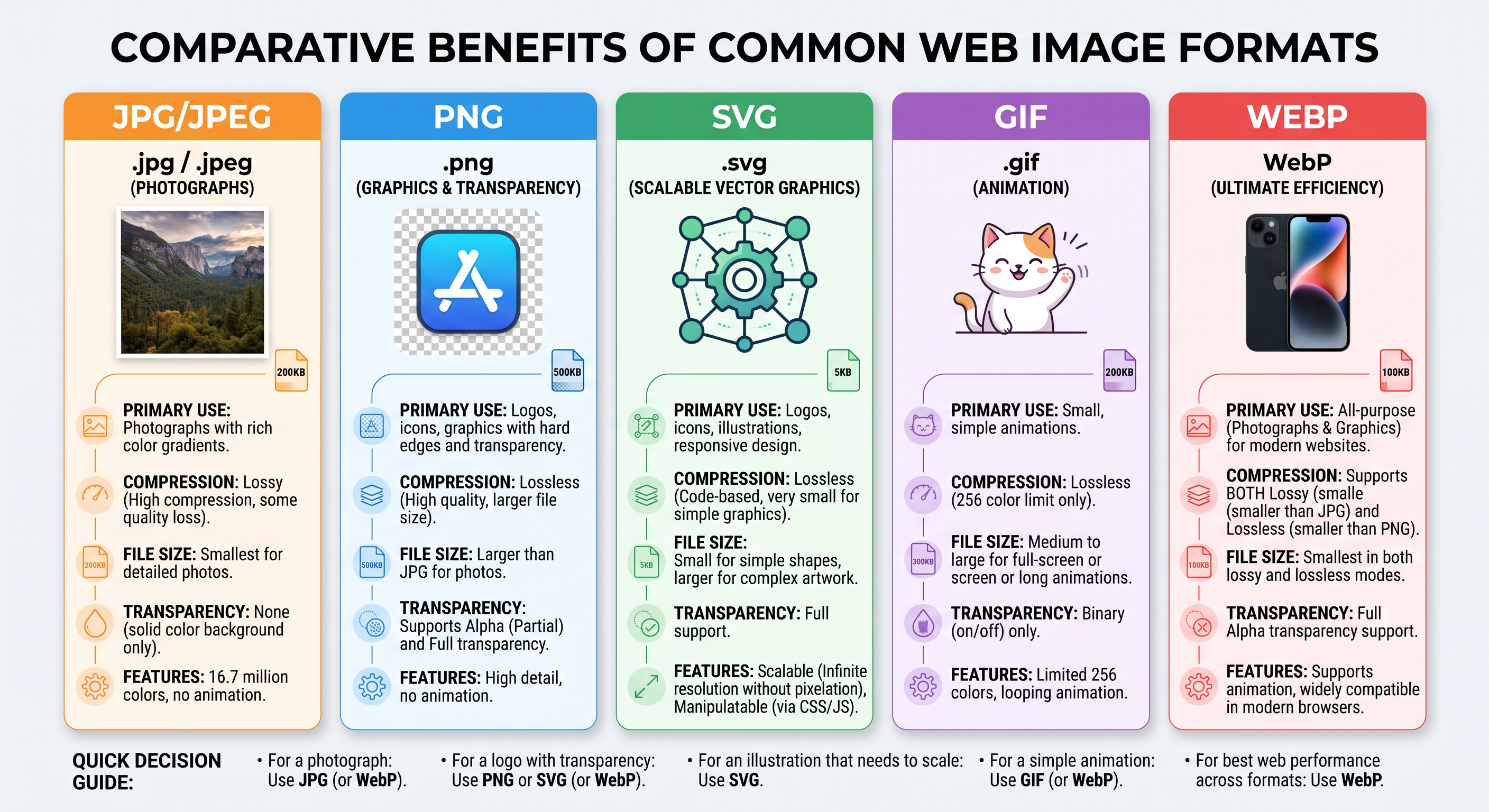
Common image formats used on the web include .jpeg (also represented as .jpg due to early Windows OS three-letter file extension requirements), Apple's preferred format .png, my personal favorite — .svg, and .gif (which actually predates the modern internet).
The newest format intended for web use is .webp, stylized as webP. WebP compression promises to provide the artifacting reduction of .png in a file size up to 45% smaller than .png. WebP is being pushed by Google.
(Click the image for a high-resolution version)
Working with .jpg
Over the years, I have found Photoshop to be the best tool to use when manually optimizing your images. Photoshop also provides the ability to batch process your images if needed. There are actually two methods to optimize and export images in Photoshop: “save as” and “save for web”. Save for web is a legacy feature, but it provides you with the most control over the output appearance.
Closest neighbors and artifacting
When working with JPG optimization, there are a few things to keep an eye out for. First, JPG compression works by the concept of “closest neighbor”. When the “closest neighbor” is a large block of a single color, artifacting is rarely an issue because all neighbors are the same color. The problem comes when you have an image with a subtle gradient, or lots of vertical components in the photo. As you compress the image, the algorithm starts dropping pixel data. In order to maintain the same image dimensions, your image editor starts duplicating adjacent pixels to fill the void left by the removal. The more you compress, the more pixel data is dropped and replaced with “closest neighbor” color data.
You may be asking, “So if you are removing the data, only to replace it with new data, how is this file compressing?”
To answer that, let's take a look at the image below. Let's imagine that this image is a zoomed-in look at a row of pixels within a gradient.

In this image, we have 5 colors, all shades of blue. Each color must have its own representation in the image source that defines the color and position of the pixel. In a JPG, each pixel uses 8 bits of data. In this example, if each block was a single pixel, we would have an image size of 40 bits.
Let's simulate compression.

After compression, we have the result above. Still a gradient, but now each color utilizes two pixels. What happened?
Well, the software looked at the closest neighbor and replaced the original color with an adjacent match. Now we only have to store 3 colors, and a pointer to the location where the color was changed, as opposed to storing the actual color information for each individual pixel. If you had a row of 10 identically blue pixels, the JPG would store the color once and a pointer for where to start and stop repeating the color before the next color shift.
In this contrived example, we have reduced the file to 24 bits, a reduction of about 50%. While this certainly gets the job done, it does leave us with some concerns.
The more compression you apply, the more color repetition you have. Gradients will be reduced in color variation and start to produce banding, as seen in the example below.
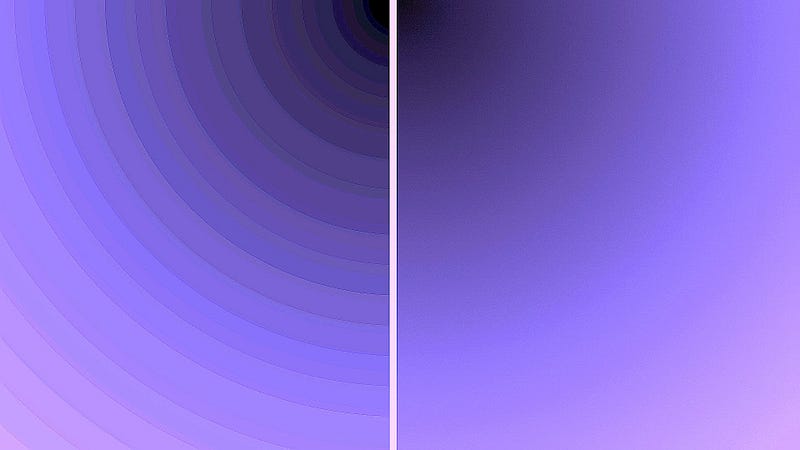
A second issue arises with artifacting. Artifacting typically occurs when there is a sharp contrast between adjacent pixels and not enough file space to store a new transitional color.
Another type of artifacting occurs when dealing with text. Pixels get replicated from one or both contrasting colors while trying to smooth out the transition. The result is pixels that are not copies of their neighbors but rather a pixel that is a mix somewhere between the source colors. The result can be seen below. For this reason, I strongly recommend not using JPG for text.
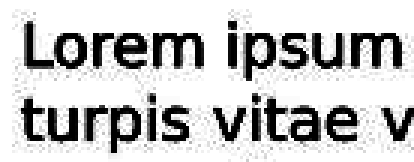
To avoid this, observe the following suggestions when optimizing a JPG.
1. If you have an image with a lot of gradient color, either limit the amount of compression you apply or consider using another format for the image , .png, for example.
2. Never apply additional compression to a .jpg that contains text. It is better to not include text at all in an image, but if you must, don’t use .jpg.
3. Banding can be disguised by adding a small amount of noise to the photo, but remember, doing this adds more pixel data back into the image, increasing its file size.
Working with .png
The way that compression works with PNGs is a more advanced topic and falls outside the scope of this article series. If you are interested in learning about how PNG compression works, check out this article.
PNGs do not compress as well as JPGs. In fact, compressing them often requires stripping out a color channel, specifically the alpha channel. Obviously this is counterintuitive if your image requires transparency. To get around this, consider not using transparency in your graphics and instead make the background the same color as the background on your site. You can then omit the alpha channel.
One of the simplest tools I have found to handle the task of optimizing PNGs is TinyPNG. TinyPNG will strip out the alpha channel (in addition to other optimizations) for you with a simple drag and drop. It also supports batch processing if you have a large set of PNGs to optimize.
Drawbacks of PNG compression
In my experience, I have found that compressing a large PNG for use in banners is often less than satisfactory. The image may take on a blotchy look, similar to a GIF. This is much less noticeable when used on smaller graphics that lack large gradients and large color blocks. This does not happen with all optimized PNGs, but it is enough of an issue that it needs to be mentioned. You will have to test your images and inspect after processing. If any take on a blotchy appearance, consider using JPG instead.
Working with .svg
SVG is hands down my favorite format to work with. It is powerful, versatile, and tiny compared to the rest. SVG is short for Scalable Vector Graphics, an XML Vector based format. It is also the one format that you can open in any text editor to see and manipulate the code.
XML is a list structure for collections of data. Outside of SVG, XML has largely been replaced by JSON.
When you open the file, you will see several pieces of information. A header that defines the file as XML-based, a list of styles being applied to the elements, and below that all the image data. The data here represents vectors that define the shapes, curves, lines, text, and effects. Each element of the artwork will be grouped in a tag. Using CSS or JS, we can target the vector groups to do things like animating the elements. That is what makes SVG ideal for use in web animation.
Optimizing SVG
SVGs generally do not need to be optimized and can be used as is. However, there are ways to reduce its size if desired.

Clean up the source
One thing you can do is remove some of the unnecessary meta data in the head of the file. Often the software you use to create the SVG will add additional data to the file that is not required for the file to render. This includes both comments and some meta. Be careful. You DO NOT want to remove any of the following:
Version number
Encoding information
Viewbox sizing (though you can manually change the values if you need)
Style data
Any of the vector data
Chop the decimals
The second thing you can do to optimize an SVG takes place when exporting. In most SVG editing software you will have some export options available. One of those options involves vector accuracy, and that accuracy depends on how many decimal places you store for each vector. Choosing 0 would result in no decimal places. For straight lines this will not create much problem, but when you have arcs and curves, accuracy is vital to maintain the smoothness of the curves.
I recommend using no more than 3 decimal places in all cases, but you can reduce the file size considerably by dropping it to 1 or 2 decimals. You will have to experiment with your SVGs to achieve the best results and the smallest possible file.
Concisely put, the more decimal places, the larger the file size and the more accurately the image will render. The fewer decimal places, the less accurate and smaller the file size.
Drawbacks of SVG
While SVG is a great option, it is not always the best choice. SVGs are best for illustrations, but not so great for images. While you can embed other image formats inside of an SVG, doing so is counter to optimization. If a flat illustration is what you need, SVG is the answer. Otherwise, go with one of the other format options.
Tools of choice: My go to tools for handling SVGs are Adobe Illustrator and Affinity Designer.
Working with .gif
Some call it a “giff”, others call it a “jiff”. The GIF format has been around since the early days of BBS ; It’s longevity reflects its simplicity and versatility. It supports animation within the indexed color scheme and this makes it a common format for memes, video clips, and loader animations. It is also a great option for icons and other simple visual elements.
Optimizing a GIF
GIFs are already relatively small in file size as a side effect of its limited color range, but that does not mean they cannot be optimized further. To do so, focus exclusively on the color palette.
GIFs can contain up to 256 colors, though the fewer colors you use in the palette the smaller the resulting file. Optimizing a GIF is a pretty manual process, and the savings are often not worth the effort. If you do choose to optimize your GIFs then I suggest considering how exact the color representation must be.
Let’s consider an icon comprised of 6 different colors. Are all 6 colors really needed? Would the icons still work well using only 4 of the 6 colors? If so, go ahead and adjust your palette down to 4 colors in your GIF editor. You just reduced your file size by ~33% and still have an icon that looks like an icon. I strongly suggest that before making a decision about editing a graphics color palette that you first consult with the person that designed the project.
Drawbacks of the GIF format
No image format is free from issues, and GIFs are no exception. GIFs are not only color limited, they also do a poor job with aliasing — especially if using transparency. A side effect of color indexing is the limitation it places on smoothing out colors and edges. In order to improve the AA (anti-aliasing), you need to make more colors available, thus increasing the file size. Take a look at the image below for a visual on this problem.
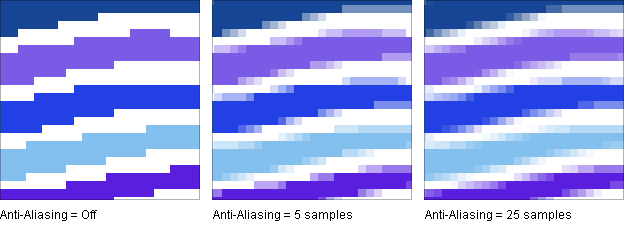
With AA off, you have a total of 5 indexed colors. While this will result in a very small file size, it will appear very rough around the edges. The second image demonstrates AA enabled with 5 point sampling. The sharp edges start to smooth out as you increase the sample size. At 25 samples, aliasing is under control but you now have a much large file size. In this case, a JPG, PNG or webP image may actually be better option to use.
If your graphic contains all straight lines, or if you don’t care about rough edges, consider going with GIF. On the other hand, if you need an image with smooth color transitions, improved AA, and a broad color palette, go with JPG or PNG.
Tools of choice: My go to tools for handling GIF optimization is Photoshop, however there are tons of free tools online to use if you don’t have access to PS.
Working with .webP
WebP started at Google around 2010 as a way to get smaller image files without looking worse than JPEG or PNG, basically a modern container that can do lossy photos, lossless graphics, and transparency in one format. It grew out of work related to the VP8 video codec, and the idea was simple: if browsers could decode it natively, sites could deploy less data and pages would feel snappier. Adoption was slow at first because Safari lagged, but once the major browsers caught up it became a practical default for the web instead of a niche experiment.
Optimizing WebP
To opptimize webP, start with a clean original, then decide how big the image really needs to be on the page (hero full-bleed vs thumbnail vs content photo). Export a WebP at roughly that display size, not a huge camera file you’ll downscale in CSS. Photos and atmospheric heroes do well as lossy WebP; start around quality 70–80 and only go lower if it still looks fine zoomed to real size. Sharp UI, logos, or screenshots with text usually want lossless (or a higher quality) so lines and lettering don’t get soft or blotchy.
For the actual optimize step, pick a tool that matches how you work. Squoosh is the easiest for one-offs: drop the file in, flip between quality settings, and watch the kilobytes change. If you’re already in Photoshop or Affinity Photo, export WebP straight from there after you’ve cropped/resized. For a folder of images, cwebp, ImageMagick, or a small Sharp script in Node will batch it. On a Mac, ImageOptim is a nice “drag a bunch of files and go” option; TinyPNG (and friends) work if you want a quick web upload without installing anything.
Are you still here?
That wraps up the common web supported image formats, and with that, this two part image optimization series. Hopefully you are convinced about the importance of image optimization for the web and this series helps you determine the best format and optimization techniques for each use case.
Are there any tips you have for image optimization that this series did not cover? Drop your suggestions in the comments.
*If you are looking to avoid an Adobe subscription then there is also the powerful and free application GIMP.
About the author
- I am a Senior level frontend engineer and design technologist with 15+ years building production UI for ecommerce and SaaS using Vue, TypeScript, and accessible component-driven interfaces. I am based in Denver, Colorado. Check out my portfolio at: https://gemlarin.github.io or Buy Me A Coffee: https://buymeacoffee.com/danny_gibas
Comments
Join the discussionNo comments yet. Be the first to comment.